
Blog

Recent posts
SEARCH RESULTS FOR: Photojunction Retro
We love what you're doing in Workspace (and we're watching closely!) You're showing us where to take the new platform, and inspiring us to make it as good as it possibly can be. Next time you log in to Queensberry Workspace you'll discover some major new features that we're sure you'll like - details below - plus we have a new Photojunction release to improve Workspace album proofing. A better experience, and a bargain too! Meantime… OUR HALF-PRICE DEAL ENDS MONDAY! If you like where we're going, our half price introductory special ends on 30 April, so you have just a day or two left to grab To View More >>
This entry was posted in by Admin
We are about to release a new version of Photojunction that will no longer support Macintosh pre-Intel PowerPCs, which were discontinued in 2006. This is necessary so that we can upgrade the Photojunction development environment, which no longer supports PowerPCs. If you are running a Windows PC you won't be affected. If you're running an Intel-based Mac you won't be affected either. All Macs have been Intel-based since 2007, so if your computer is newer than that you're fine. If you're not sure you can check by going to About This Mac under the Apple menu. We have announced that this is coming To View More >>
This entry was posted in by Admin
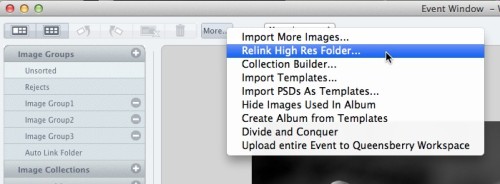
Warning: Your high-res files are missing! At one stage or another in your relationship with Photojunction I'm sure you've encountered this warning. If it was a popularity contest it would end up below car salesmen, cold callers and politicians. But love it (nobody) or hate it (everybody) it's there for a good reason. Photojunction travels along paths. It follows those paths to locate, use and update the proxy images, hi res files and exports created as you work. The rules are simple. If you don't move, rename or delete your files and folders, Photojunction will find them. But life isn't simple, To View More >>
This entry was posted in by Admin
I use the Browse Tab of the PJ Welcome screen a lot, but if you're sending orders to Queensberry the Uploads screen is also important, particularly if there happens to be a problem with your order. The screen has lots of information, so when the list of uploads gets busy you can sort (by any column), search, or filter based on status or upload date. The buttons are really important, and they change depending on the status of the upload. UPLOAD or RESUME - If the upload was interrupted or paused you'll see this. Mind you, when you booted PJ a popup would have reminded you had incomplete uploads) To View More >>
This entry was posted in by Admin
You created the perfect album. Except the size is wrong. Your clients have changed their mind. They still love the layout, but they want a different book. It isn't the ideal situation. It's actually why I prefer consulting the couple BEFORE laying out their book. Design for what they definitely want versus what you hope they will want. But alas, you're here. Stuck with the wrong size album. Thank goodness Photojunction auto-saves your albums as templates. You've just saved a ton of time! Just create a new album in the correct size (click the "+" button next to Products in the Event Window), add To View More >>
This entry was posted in by Admin
You've designed your album. You've created your exports. You're ready to upload. One key step you need to add: check your print files! Open your exports in Photoshop. Double check your alignment and image placement. Make sure the correct images are on the layouts. View them at 100%. Double check for pixelation. Are your files the correct color profile for your printer? They should be Adobe 1998 for Queensberry. Have you used our soft proof profile to double check your colour (you can download them here)? Is your monitor calibrated? If this is your first order, you are eligible for free test prints. To View More >>
This entry was posted in by Admin
I have a confession. Unlike a lot of our customers I'm relatively new to Photojunction. Luckily I work with a great team, so when required they make me look good. The cool thing is that I look at Photojunction and discover things about it daily that I didn't know. There are features that are a little hidden. It's a bit of a shame, really, that they aren't more obvious, because usually they do something that can change the way you work for the better. So I thought it would be nice to share our ten favorite buttons (in no particular order). 1. Open templates in new window Place your cursor over To View More >>
This entry was posted in by Admin
Here's my second handy hint about file management. Don't muck about with your hi res files outside Photojunction after they've been imported. The key words there are outside Photojunction. If you want to keep the software smiling, they're important. It means you need to think about when and how you copy image files, and when you are going to do your artwork. Here are three alternative scenarios, which all keep PJ happy if used properly: 1. Do art work on your images before importing them. This is so you can import one set of finished files without lots of extra images, sub-folders etc to confuse To View More >>
This entry was posted in by Admin
Hi Guys, I have been having a few "GoToMeeting" video calls with clients recently and if I was going to comment about anything it would be how we manage files. There is a wide variety of ways people set up and work with their files, and sometimes they lead to confusion and frustration. Here's the first of a couple of posts that will help. ;) Place your files somewhere safe. Your desktop may not be the best place to save files, because you may have a tidy up and delete something that you may want to retain, at least until you get your album back. On the flip side you don't want to bury them deep To View More >>
This entry was posted in by Admin
By default Photojunction keeps its main database and your template and project files in a folder called "Photojunction" on your computer. You can move the folder to a new location, but by default you'll find it here: Windows Vista and Windows 7: C:Program DataPhotojunction Windows XP: C:Document and SettingsAll UsersApplication DataPhotojunction Mac: Macintosh HD:Users:Shared:Photojunction: If you're shifting to a new computer, just move the ENTIRE FOLDER to the equivalent location on the new machine. Some people may have moved their PJ Project files (client/event/album data) to a different location. To View More >>
This entry was posted in by Admin


